Guide › Before your first run
Before your first run
Set up Cursans
Bring every run in, connect your training plan, and know when each answer appears.
- The first questions
- Bring all your runs in
- Other sources
- How copies of the same run are merged
- Your training plan
- When the answers appear
- Find your way in the app
The first questions
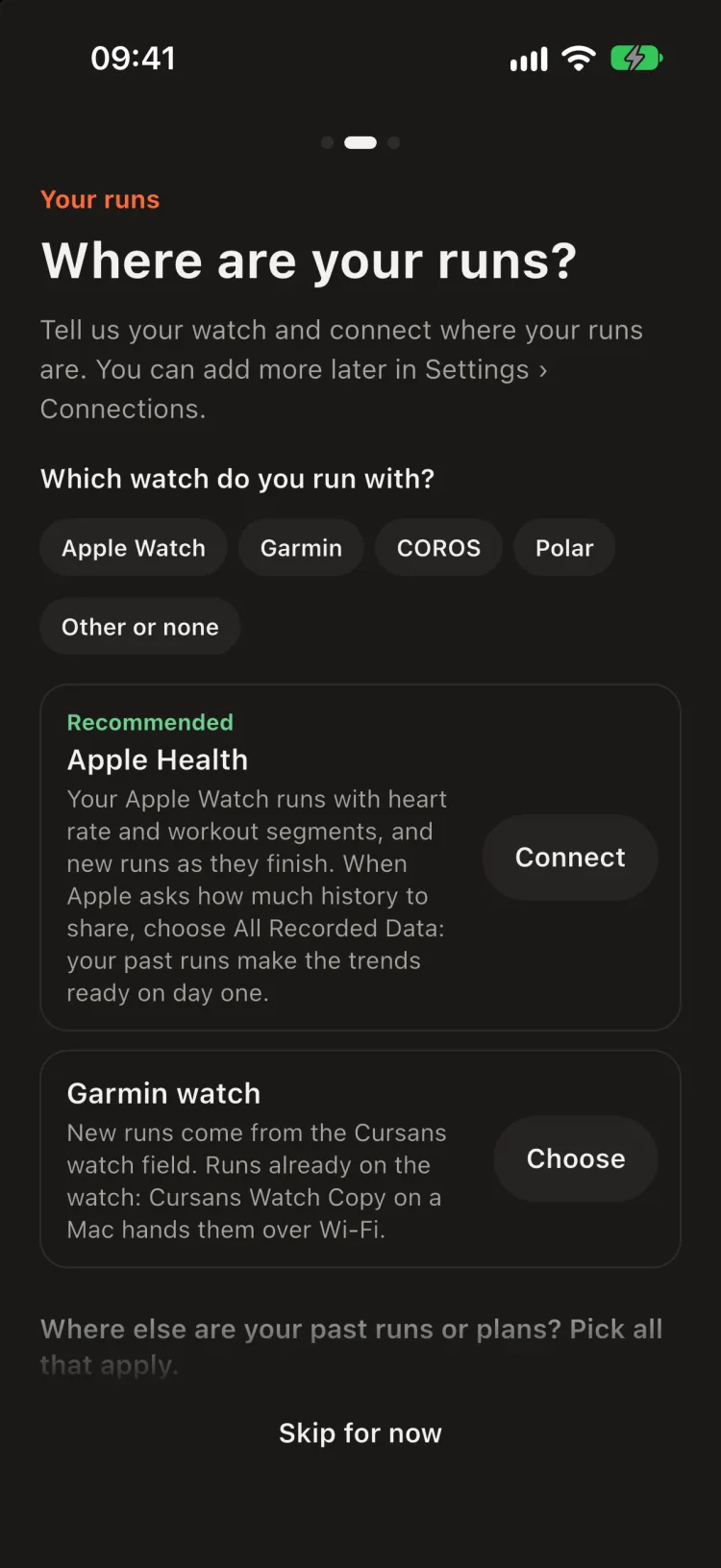
The first time you open Cursans it asks a few short questions, so your history is in from day one. You can change every answer later in your picture › Connections.
- Which watch do you run with? Apple Watch, Garmin, Polar, COROS or another. Cursans then shows the way in for that watch.
- Where are your runs? Apple Health, your Garmin watch, or both. When Apple asks how much history to share, choose All Recorded Data: your past runs make the trends ready on day one.
- Bring in your past runs and plans: Garmin, Strava, Runna or a coach. Each answer shows its own way in: an account export to import, the plan calendar, Apple Health, or a session pasted on a run.
- Which of these were races? After the first import, one list of likely races. Tick the ones that were races and leave the rest: races set your race times, the floor of your LT2 and your predictions. Missed one? Open the run in Runs and tick Race.
Bring all your runs in
The more history you bring, the sharper every answer.
- Apple Health and your Garmin watch cover most runners. Use both if you have both: the same run arriving twice is kept once, with the best parts of each copy (how).
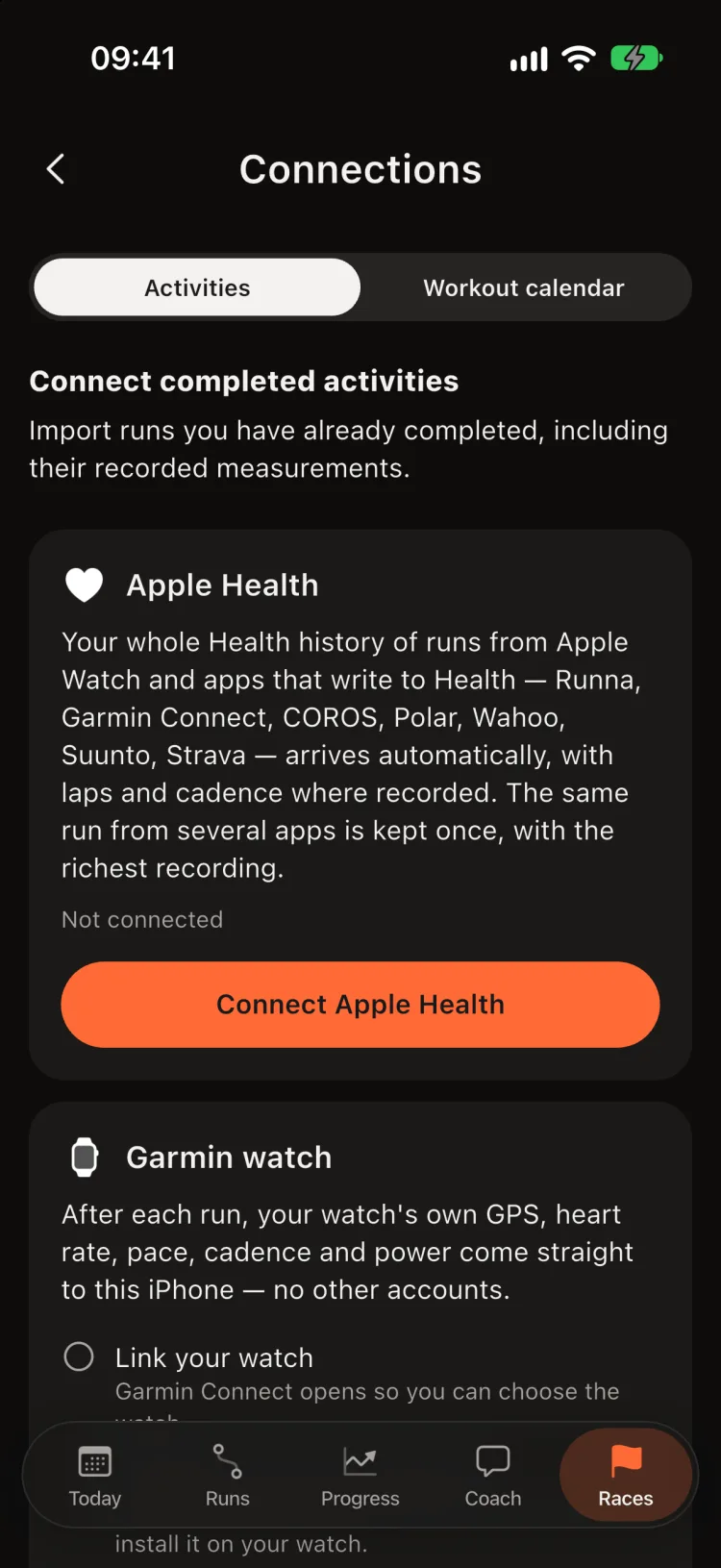
- Every source lives in one place: your picture at the top right of any tab › Connections.
With a year of runs imported, your trends, usual week and load are ready on the first day.
RecommendedApple Health
Everything your Apple Watch recorded, with heart rate and the workout's own segments, plus every new run as it finishes.
- Open Cursans, then Settings › Connections › Connect Apple Health.
- In Apple's sheet, allow workouts, routes, heart rate and the running measurements. Cursans only reads; it never writes to Health.
- Your history imports in the background. The first time can take a few minutes for years of runs.
- From then on, a new run appears on its own, with a notification carrying its one-line read.
Garmin watch: copy every run stored on it (Mac or Windows)
Cursans Watch Copy is a small app for your Mac or Windows PC that reads your watch over USB and hands the original files to your iPhone over Wi-Fi. Original files keep everything the watch measured: every reading per second, laps and workout steps, running dynamics and, with Log HRV on, beat-to-beat intervals.
Download for Mac macOS 13 or later · Apple silicon and Intel · 1.2 MB Download for Windows Windows 10 (1709 or later) or 11 · not tested yet · 8 KB- Open the downloaded file and drag Cursans Watch Copy onto Applications.
- Open it once and confirm when macOS asks (it is signed and notarised by Apple). After that it lives in the menu bar and starts at login.
- Quit Garmin Express: only one program can hold the watch.
- Plug the watch in. Its runs are copied, only the new ones each time.
- Open Cursans on your iPhone on the same Wi-Fi: it picks the runs up. Or tap Settings › Connections › Get runs from my watch now. The first time, you enter the pairing code the computer shows, once.
- Unzip it, put the Cursans Watch Copy folder anywhere, and double-click Cursans Watch Copy.vbs. If Windows asks whether to run it, choose Open. It lives in the tray, next to the clock, and starts at login.
- When Windows Firewall asks, allow it on private networks: that is how your iPhone reaches it.
- Quit Garmin Express, then plug the watch in.
- Open Cursans on your iPhone on the same Wi-Fi, or tap Settings › Connections › Get runs from my watch now. The first time, you enter the pairing code the computer shows, once.
Garmin watch: new runs straight to the phone
The Cursans data field, Cursans view, records the watch's own readings once per second while you run and sends them to the iPhone over Bluetooth after each run, through Garmin's own watch connection.
- In Settings › Connections, tap Link Garmin watch. Garmin Connect opens so you can choose the watch.
- Tap Install Cursans view from the store and install it from the Connect IQ Store.
- On the watch, add Cursans view to a Run data screen (one field on the screen). It records only once it is on a Run screen.
Older Garmin runs the watch no longer stores
A watch keeps a limited number of activities. For your full history, ask Garmin for a copy of your data from your Garmin account's data management page. Garmin emails a download link; this can take a while. Then share the ZIP to Cursans from Files or Mail, or use Settings › Connections › Import activity files. Cursans keeps the runs and skips everything else in the archive.
Other sources
Only needed for runs that never reached Health or Garmin, such as an old watch or a phone app:
- Polar and COROS: connect in Settings › Connections with your own login. New runs arrive by themselves as the watch's original recording.
- Strava: import your archive ZIP (Strava settings › My Account › Download or Delete Your Account › Request Your Archive).
- Files: FIT, TCX or GPX, or a ZIP of them, shared to Cursans or picked with Settings › Connections › Import activity files.
How copies of the same run are merged
When the same run arrives from two places, Cursans takes each part from the best copy, in this order:
- The session's structure. Laps your watch or plan labelled (warm-up, reps, recoveries) always win over anything Cursans would detect.
- The most complete readings. For each measurement, the copy with the fullest coverage and the most readings per second.
- The name. A real session name ("6 × 400 m") over a generic one ("Morning run").
Your training plan
Connect your plan once; every run is checked against it.
Open your picture › Connections › Workout calendar:
- Runna puts your plan in the iPhone Calendar by itself. Turn on calendar sync in Runna, then tap Read my plan from Calendar.
- Garmin Connect (and plans sent to it, such as TrainingPeaks workouts): on connect.garmin.com open Calendar, use its share or export option and copy the link. Paste it under Calendar link and tap Add link.
- TrainingPeaks (Premium): Settings › Account › Calendar, copy the calendar link and paste it the same way.
No Apple Calendar subscription needed: Cursans reads the link each time it opens and keeps a session two apps both list once. The link is private, so keep it to yourself.
When the answers appear
| After | You get |
|---|---|
| Your first run | Its full read: pace, heart rate, reps and rests, records. |
| 6 runs of one type over 3 weeks | Trends for that type: improving, stable or declining. Fewer runs cannot tell a real change from a good day. |
| 4 weeks | Your usual week, so a week reads as bigger or lighter than normal. |
| About 6 weeks | Load and freshness settle (the 42-day load needs that long). |
Importing your history skips the wait: with a year of runs from your watch, everything is ready on the first day.
Find your way in the app
Five tabs at the bottom, each answering one question. Two buttons sit at the top right of every tab.
| Tab | Answers | Open it when |
|---|---|---|
| Today | What is today's run, and how is it going? | Every morning, before you run. |
| Runs | What did that run show? | After a run, or to find an old one. |
| Progress | Am I getting fitter, and in what? | Once a week, or at the end of a block. |
| Coach | Questions in your own words. | When a number makes you ask why. |
| Races | What could I race, and how did my race go? | Before and after a race. |
- ✦ (sparkle): turns on Coach mode, so each card says what it means with your own numbers. Tap it again to turn it off.
- Your picture: Settings, your profile, zones, connections and privacy.
- Tap a number to see where it comes from. Almost every tile, line and chart opens its trend, its run or its explanation, and each explanation names its source.
- Tapping Today in the tab bar always brings you back to the top of Today.