The guide
Your watch measures. Cursans figures out what it means.
Short chapters, in the order you meet them as a runner: before your first run, every morning, after a run, every week and in race season.
In four steps
- Bring your runs in: Apple Health, your Garmin watch, Polar or COROS.
- Open Today to see how your running is going.
- Tap a run to read it: reps, rests, drift and records.
- Tap any trend to see it over weeks in Progress.
Cursans does not write your plan: it comes from you, your coach or your plan app (Runna and others). Cursans shows how the plan is working.
Chapters
Before your first run
Set up CursansTen minutes now, and years of runs are ready on day one: bring every run in and connect your plan.- The first questions
- Bring all your runs in
- Apple Health, Garmin, Polar, COROS
- Your training plan
Every morning
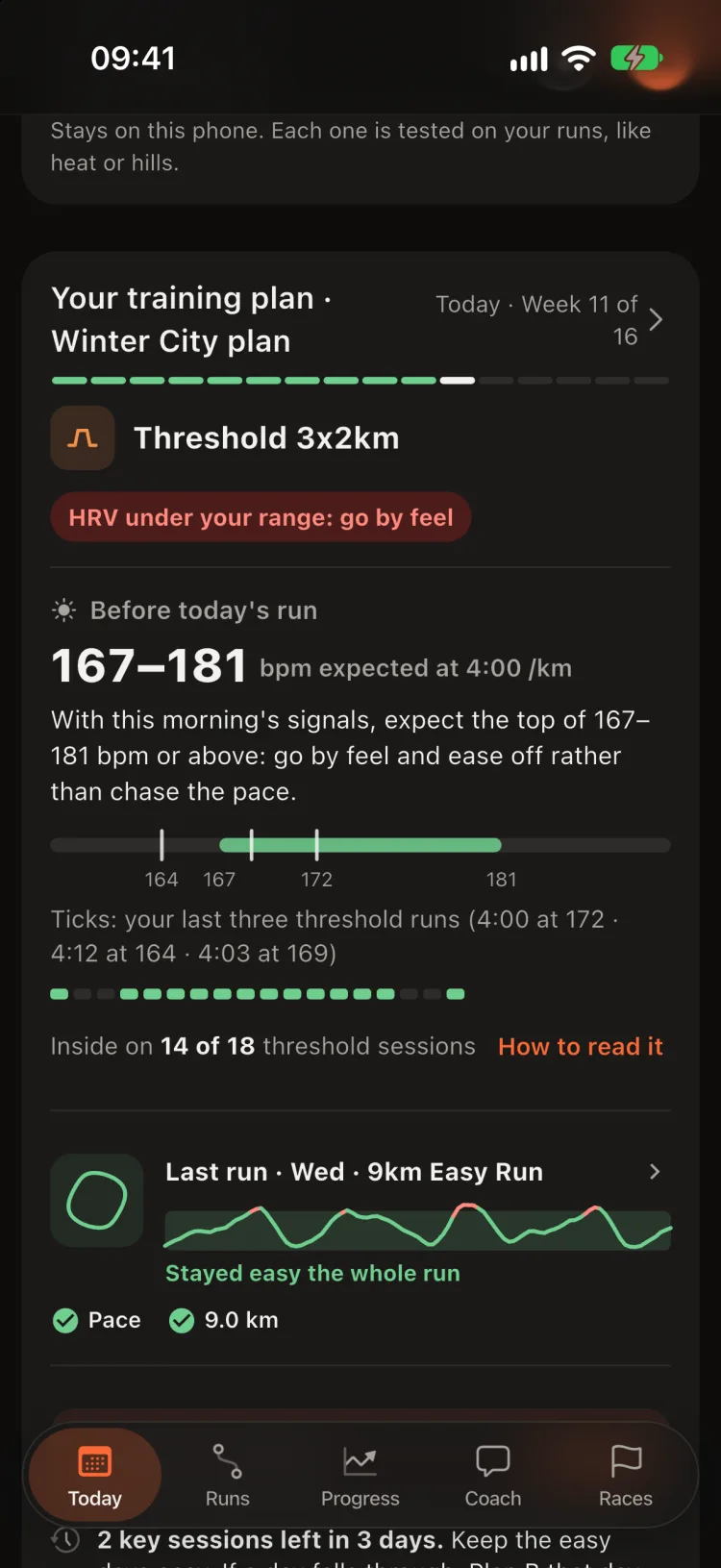
Today and your planOpen it before you lace up: what to run, whether your body is ready for it, and whether the training is working.- Today's run and the morning read
- Daily notes and check-ins
- Your status and your week
- Widgets
After a run
Reading a runEvery run read the way a coach would: what it was, how you ran it, and what it says about your fitness.- Runs and one run
- A training run
- Session as written
- A race
Every week
ProgressThe question every runner asks: am I getting fitter? Answered per workout type, over weeks rather than days.- Progress
- One trend
- What affects you
- Metrics and Compare
Race season
Races and CoachBefore a race: what you could run and whether the build-up is on track. After it: how it went against every race before.- The Races tab
- Building up to a race
- After a race
- Coach and the report for your coach
When you wonder
Words, settings and your dataEvery verdict, mark and setting in plain words, and exactly where your data lives.- What the words and marks mean
- Settings worth knowing
- Your data
A tour in pictures
What Cursans reads from your runsThe ideas behind every screen, shown on real runs.- More than measurements
- What your body can do
- Every run with the right reference
- Progress, not just a line going up
Three questions, step by step
“Am I getting fitter?”
- Open Progress. Under Progression by workout type, look at the four verdicts.
- Here, easy runs are ▲ improving (+8.0% speed per heartbeat), threshold pace is 11.1% faster and rep pace 5.5% faster; long-run drift is stable.
- Tap the Easy tile to check it is a trend, not one good week: the dashed line rises across 22 weeks and 48 runs.
- The verdict reads your runs as measured. When warm weeks move the trend, the share from the heat is stated beside it; the Chart without the heat switch only redraws the chart without it.
“What should today look like?”
- Open Today. Today's run says 5 km easy, 25–30 min, no faster than 5:00 /km.
- How you come in says 6 days after the marathon · resting HR +6 · sleep 1 h 42 short: keep it truly easy. Before the run shows the heart rate your own runs expect at that pace.
- Your status agrees: Recovering from Riverside Marathon · day 6. Tap Why › for the reason: muscles recover over one to two weeks after a marathon.
“How did my race go?”
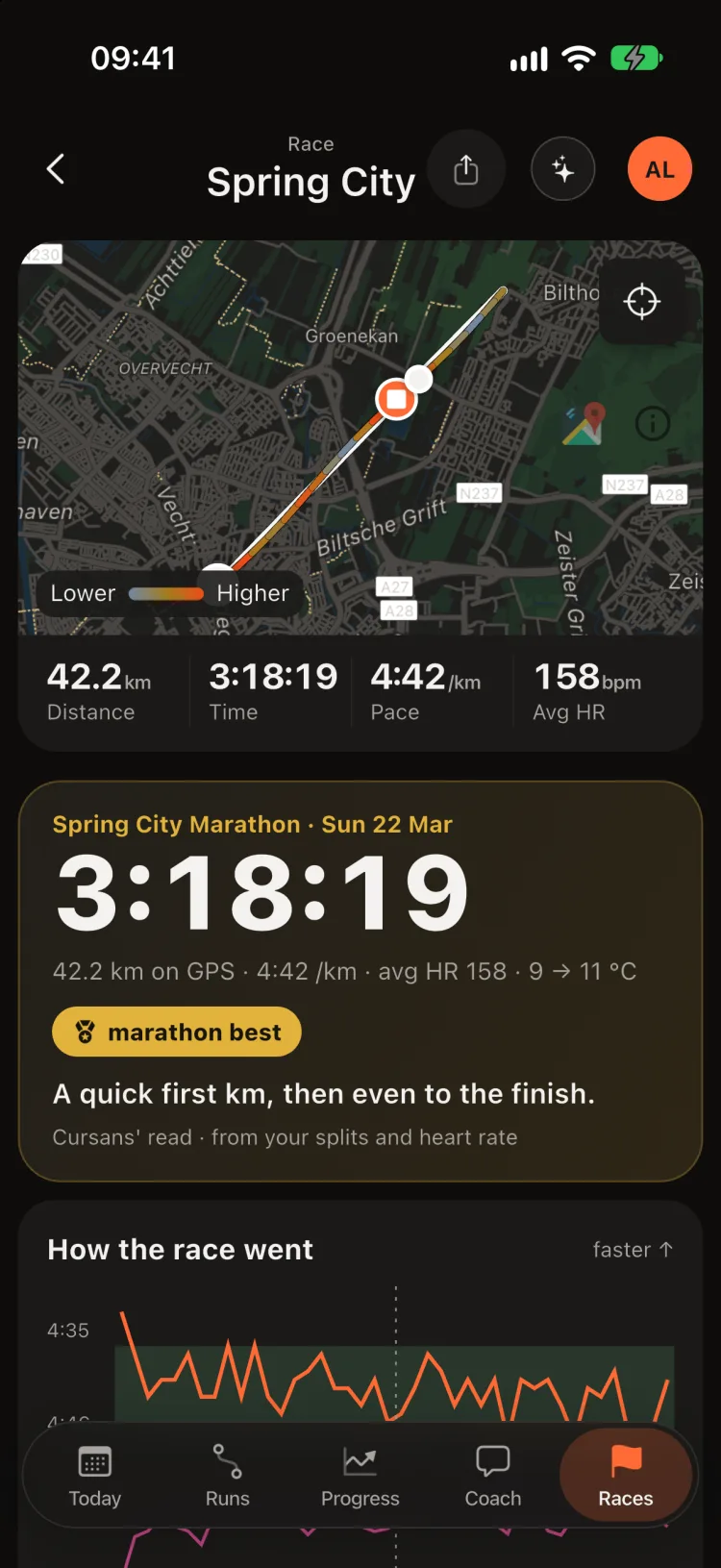
- Open Races and tap Latest race (or find it in Runs).
- Read the sentence under the time, then How the race went: 32 of 42 km within 5 s of race pace, the second half 1:03 faster.
- Your marathons puts it against the earlier ones: 2:50 faster than the best before, at the same average heart rate.
- Open each line of What the race says for its evidence, then What limits your marathon and Did the block work?, and ask Sans “What does Riverside say about my next marathon?”.
Find a topic
Set up
- Which of these were races?One list after your first import: tick your races once.
- First launch questionsWhich watch, where your past runs are, and your plan.
- Apple Watch and Apple HealthEvery Apple Watch run, with its segments, as each run finishes.
- Garmin: Cursans viewA watch data field that sends new runs straight to the iPhone.
- Watch Copy for Mac and WindowsEvery run stored on a Garmin watch, copied over by cable.
- Polar, COROS and archivesSign in to Polar or COROS once, or import a Strava, Garmin or Polar account archive of past runs.
- Your training planYour Runna, TrainingPeaks or Garmin Connect calendar, or your coach's, read session by session.
- Ready on day oneBring your history and the trends are there the first day.
Today
- Today's runThe session from your plan, its limits, and one tap to send it to your watch.
- Morning readThe heart rate your own recent runs expect at today's pace, and how often that has held.
- Step up in distanceA run much longer than your longest of the last 30 days is pointed out before you run it.
- Overnight noticeSaid only when your mornings are off two days in a row. It never tells you to rest.
- Recovery after a hard sessionOne cell per night until your mornings are back to your usual.
- Back after a breakYour first runs back, set against the weeks before the break.
- Check-ins, effort and fuelOne tap for sore legs, stress, travel or a niggle, and how hard the run felt.
- Your week by intensityPlanned runs as outlines, km run split into easy, moderate and hard.
- Plan BCan't run today? The best day this week to move the session to, and what it does to the week.
- Widgets and race-day Live ActivityYour next session and your week on the Lock Screen and Home Screen.
- Every run gets a typeEasy, long, threshold, intervals or race. When Cursans is not sure, it asks you once in Today's One question card. Your answer always wins.
- Since yesterdayOnly the trends that changed colour, so a normal day stays quiet.
A run
- Coach's readA run summed up in one sentence, then each part in plain words with your own numbers.
- Intervals, rep by repEvery rep against its target: on target, slightly off or clearly off, faster or slower.
- Did easy stay easy?How much of an easy run went above your easy-run ceiling.
- Heart-rate driftDid the same pace cost more heart rate in the second half than in the first?
- Where drift startsOn long runs and races, the km after which each heartbeat bought less speed.
- A year apartThe same kind of run, a year earlier, side by side.
- Fuel on a runCarbohydrate and fat used on long runs, as a likely range, never a 'fuel left' number.
- Session as writtenPaste your coach's session onto a run and it is read rep by rep.
Progress
- Progress by workout typeEasy, long, threshold and intervals each tracked against their own kind.
- Improving only when it is realGreen only when the change is bigger than your normal ups and downs.
- Chart without the heatA switch that redraws the trend without the weather. The verdict still reads your runs as measured.
- What affects youHeat, hills, wind, time of day, sleep, HRV and check-ins, each tested on your own runs.
- What holds your late driftOn runs of an hour or more: what goes with your heart rate creeping up late.
- Compare blocksYour last six weeks against the six before.
Races and Coach
- Predictions and your distancesWhat you could race from 5K to the marathon, with a likely range.
- Your race, km by kmPace, heart rate and where it started to cost.
- Compare your marathonsEvery marathon on one chart, km by km, with the weather of each.
- What limits your marathonEngine or staying power: where your next minutes are.
- Did the block work?Each kind of run's change over the build-up, against 'no real change'.
- The build-upOn track? Keep, Adjust or Check for each part of the plan before the race.
- Race fuel planCarbohydrate an hour for your goal pace, with a gel at each mark.
- Coach mode and SansEach card explained with your own numbers, and questions answered on the phone.
- Report for your coachA link, PDF or CSV, or a weekly link, with two consent switches. The link ends after 30 days.
Reference
- Settings worth knowingYour long-run distance, zones, widgets and notifications.
- How colours are decidedGreen, grey and red: one public cut-off per measure, the same everywhere.
- Words and marksImproving, stable, unclear and the other words on screen, explained.
- Your dataNo account: your runs stay on your iPhone. A backup file you keep, and Delete all.